![RIEGL_Logo_Schriftzug_rgb_R[1]-2](https://support.riegl.co.uk/hs-fs/hubfs/RIEGL_Logo_Schriftzug_rgb_R%5B1%5D-2.png?width=200&height=71&name=RIEGL_Logo_Schriftzug_rgb_R%5B1%5D-2.png)
The RIEGL VZ-i Series App allows you to control your RIEGL VZ-i Series laser scanner (VZ-400i, VZ-600i, etc) system remotely. The Graphical User Interface (GUI) of the laser scanner will be displayed on the screen of your device. The RIEGL VZ-i Series app is available on iOS, Android and Windows devices.
Install the RIEGL VZ-i Series app to your device:
-
App Store for Apple devices
-
Google Play store for Android devices
- riegl.com Members Area for Windows devices
Ensure the scanner's WiFi is switched on and is set to "Access point". To do this, tap the WiFi icon on the top status bar of the scanner's home screen. Make a note of the SSID of the scanner's WiFi network.
Connect your device to the WiFi network by locating the SSID in the list of available WiFi networks. It will normally be the same as the serial number of the scanner. Enter the WiFi password when prompted, which is 0123456789.
Now, open the RIEGL VZ-i series app, and tap on "Local Access".
In the Hostname / IP Address field, enter the serial number of the scanner (i.e. H2221234). You can find the serial number on the sticker at the base of the scanner. Tap "Connect" and wait for the app to connect to the scanner.
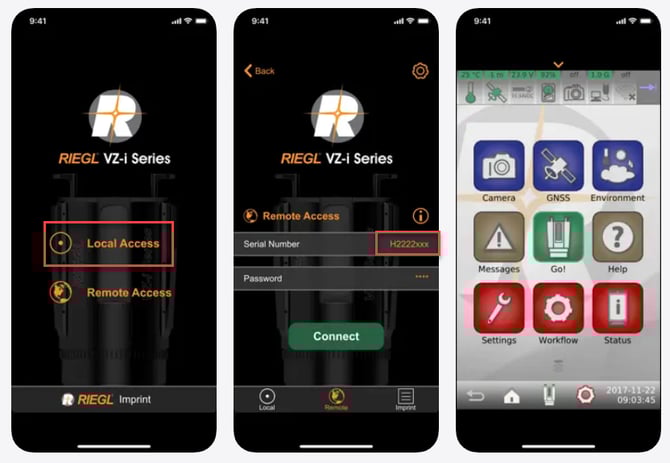
Once connected, the scanners' HMI screen will be displayed on your device, and you will be able operate it as if you were using the HMI directly.