![RIEGL_Logo_Schriftzug_rgb_R[1]-2](https://support.riegl.co.uk/hs-fs/hubfs/RIEGL_Logo_Schriftzug_rgb_R%5B1%5D-2.png?width=200&height=71&name=RIEGL_Logo_Schriftzug_rgb_R%5B1%5D-2.png)
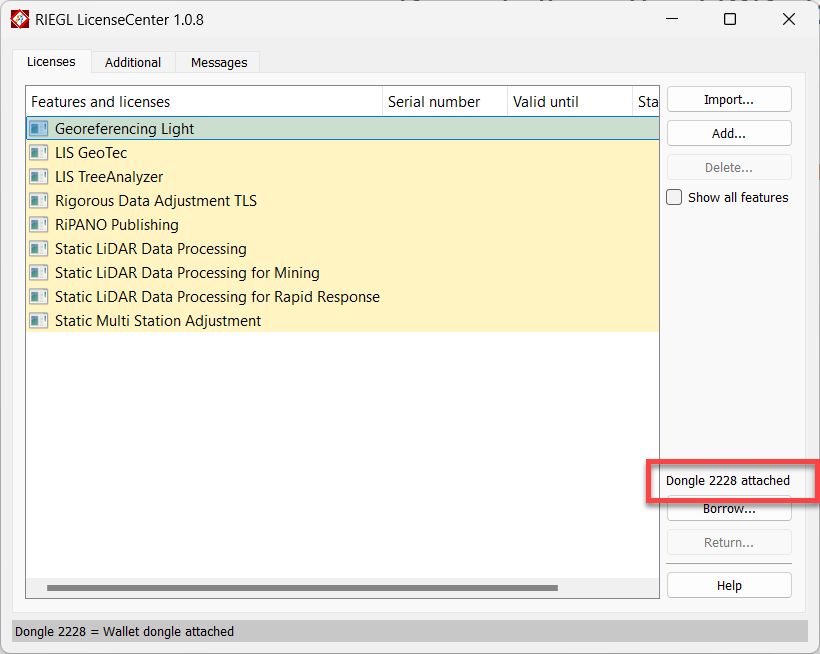
When a green dongle is attached to your computer, the dongle ID number should be displayed in LicenseCenter:
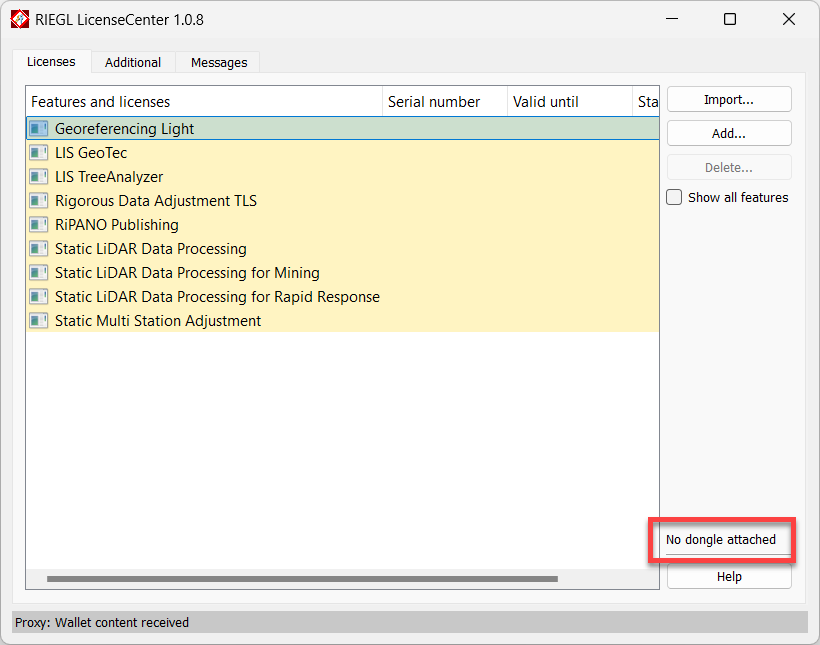
If it isn't, and you see the "No dongle attached" message, you might need to reinstall the dongle driver:
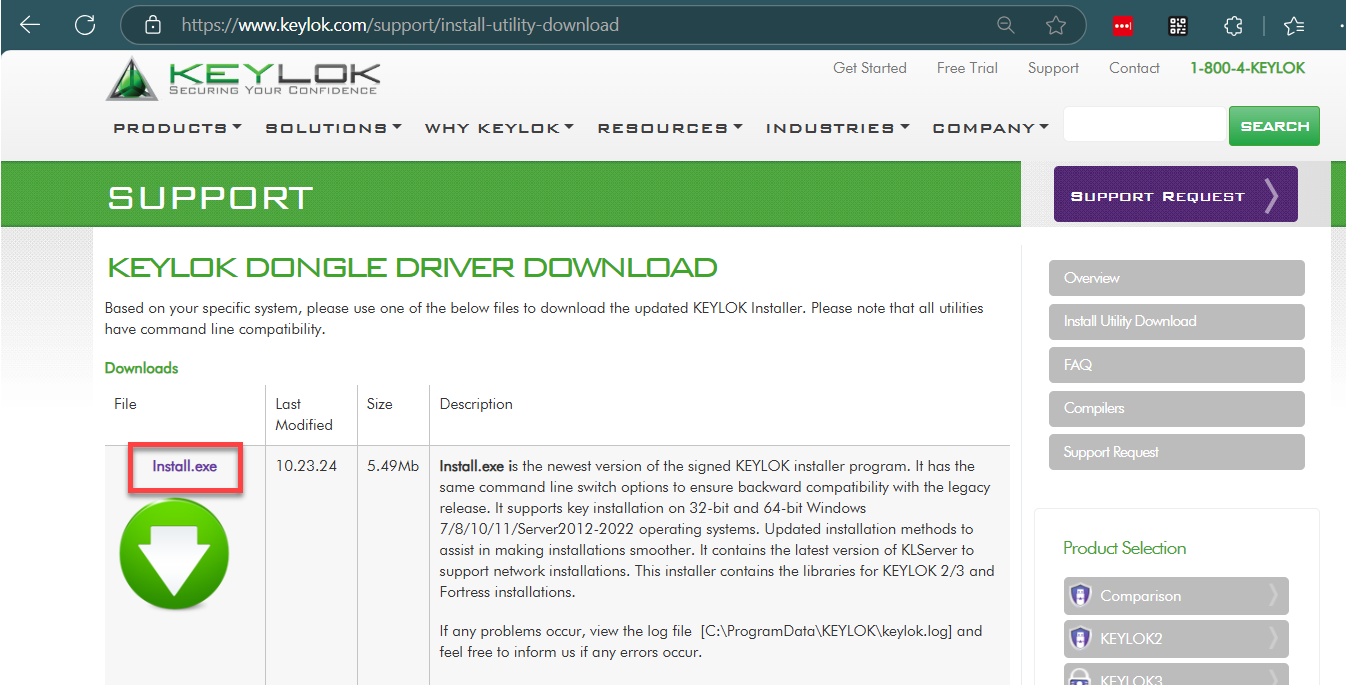
Download the driver from https://www.keylok.com/support/install-utility-download. The driver utility is called "Install.exe"
Unplug the green dongle and close any RIEGL software that is running.
Uninstall the driver
Firstly you should uninstall the existing driver files. The download will be a zip file, containing the Install.exe utility. Double-click the Install.exe file to ruin the install utility. Select the "Uninstall" option, and click "Begin install":
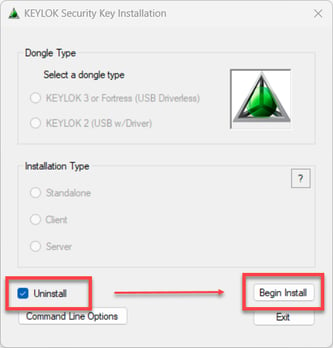
If you see the following message, ensure that you have unplugged the dongle and closed any RIEGL software, and try again:

Once the uninstall has been successful, you will see this confirmation:
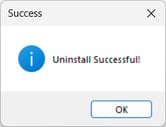
Now you can reinstall the driver.
Reinstall the driver
Double-click the Install.exe file again. This time, select the options Dongle Type: "KEYLOK 2 (USB w/Driver)" and Installation Type: "Standalone":
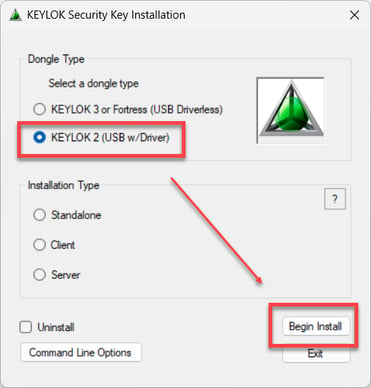
One the first screen of the Wizard, click "Next":
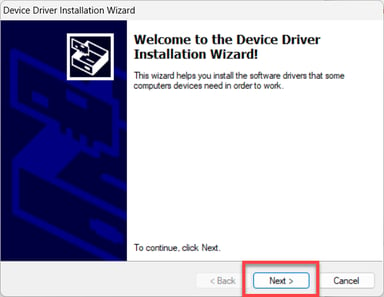
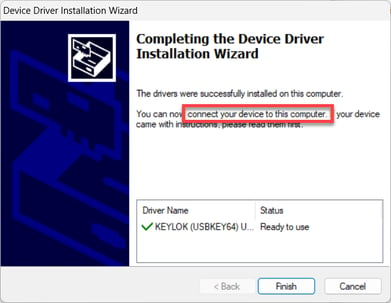
Important: once the next screen opens, and before clicking "Finish", plug the dongle into the computer. This will complete the installation of the driver.
Check the dongle is now detected
You may find that the dongle is still not detected. In this case, please reboot your computer and check again.